UI Support
projspec is designed to be useful in whichever interface you are already using -
it comes to you, rather than the other way around. As well as the python
library interface (which provides full power and flexibility),
the following interactivity is supported. Of these, all but
the CLI look very similar and have the same capabilities.
CLI
Installing projspec makes the command projspec available. This is the same command which is called
as a subprocess by the vscode, pycharm and anaconda-desktop plugins. Unlike the rest of the UIs here,
this is already covered in the Quickstart. Text feedback is given for every command and parameter
Here is the full tree of possible commands
projspec
    config   Interact with the projspec config.
        defaults  Show default config settings for all available values and short descriptions.
        get       Get a value from the config.
        set       Set a config value.
        show      Show all contents of the config.
        unset     Remove a value from the config (returns to default).
    create   Create a new project of the given type in the given path.
    info     Documentation about all the classes within projspec.
    library  Interact with the project library.
        clear    Clear all contents of the library.
        delete   Delete the project at the given URL from the library.
        list     Show contents of the library.
    make     Make the given artifact in the project at the given path.
    scan     Scan the given path for projects, and display.
    version  Show version and quit.
GUIs
Each UI looks something like the following (which is for vscode):
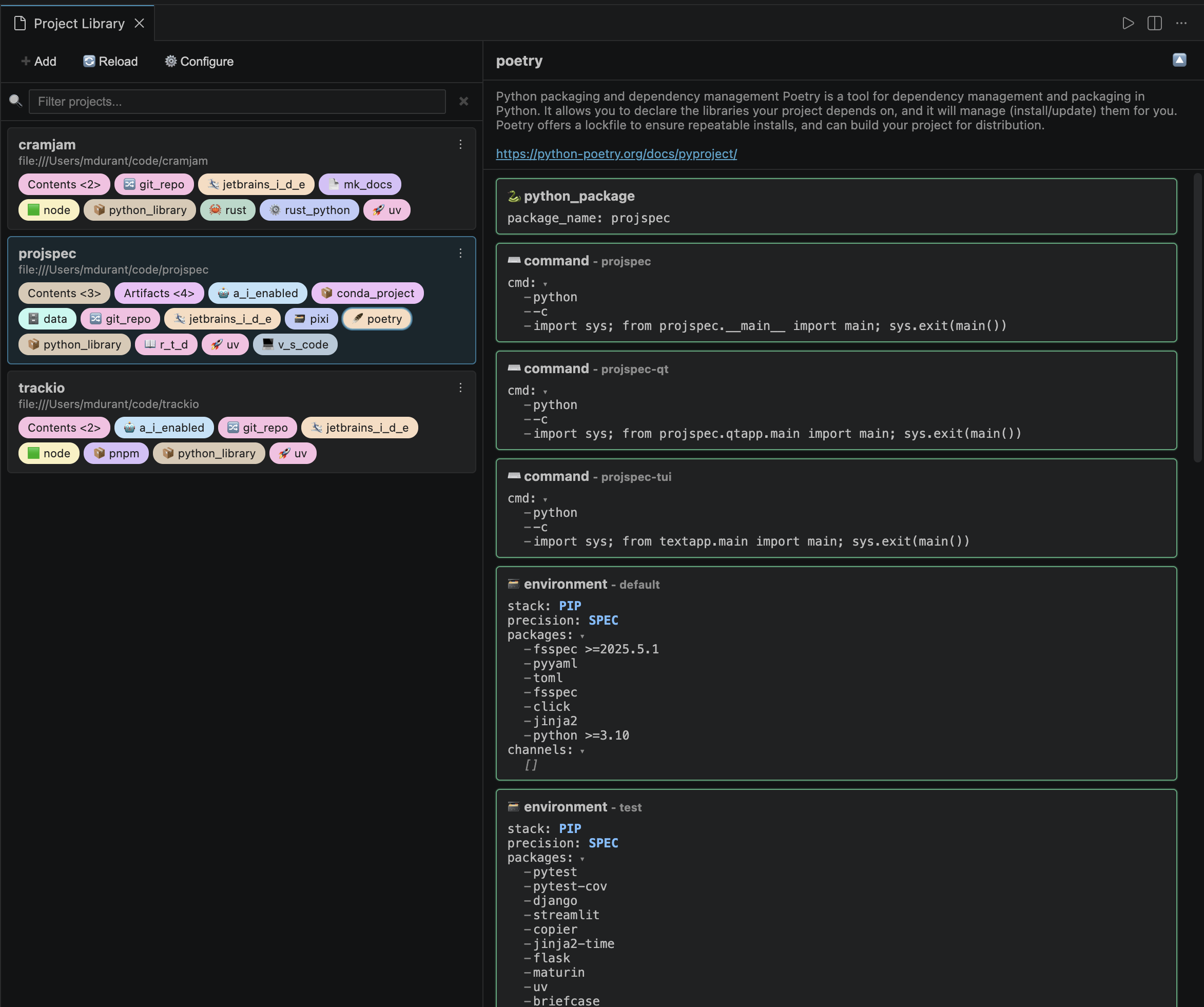
Ths UI consists of two main areas: the library (left) and project details (right).
Project Library: this lists projects that have been scanned, either via this UI or the CLI. The searchable list
of projects shows the title and location of each project, and the list of project specs it conforms to. Clicking on
any of the coloured chips will populate that information into the details pane. Each project also has a set of
commands in a menu under the “⋮” button, which allow you to rescan, remove or open the project. The open action will
reuse the current application, if appropriate and implemented. Control buttons above the project list allow you
to add new projects and configure projspec (i.e., open the config file for editing). Note that most UIs will
present a system file picker for scanning new projects, so you need to use the CLI for remote ones - w may change this
in the future. Choosing “create” for a project will present a picker for you to choose the project type you
would like to add to the project, and (if accepted) can open the created file(s), if the application
supports this.
Details: the full information for the selected project spec. This is a list of Content objects (green, information only) and Artifact objects (red). As well as displaying the scanned information, each widget contains an (i) information button, which gives a brief description of that type. Artifacts also have a Make button to perform the artifact’s action. This runs as a subprocess, and where you can see feedback depends on the application; we prefer an in-app terminal, if available.
Notebooks
Requires the optional anywidget and ipywidgets packages;
install them via
$ pip install projspec[ipywidget]
Instances of ProjectLibrary will render using the same HTML view as the standalone apps and plugins.
from projspec.library import ProjectLibrary

lib = ProjectLibrary()
lib
Of course, because this is a real python session, you can also call any methods on the library instance as you might in normal python code.
Jupyter
The separate repo jupyter-projspec implements an extension for jupyterlab/jupyter-classic, which shows
the projspec summary for any directory you navigate to in the file browser. It also works for
directories selected in jupyter-fs panels, so that you can scan remote directories too.
Currently, there is no integration with the project library (unlike the other UIs here), but we may well clone the HTML look into a jupyter-lab side-panel in the future. For now, you can use the Notebook interface, above.
Note that, by its nature, the kernel running any given notebook is not necessarily in the same directory or even the same machine as the server providing the interface, and neither of these needs to be your local system. Running “Make” on artifacts will only work for projects local to the server process.
VSCode
This extension will be made available via the extension store right within vscode, but you will also need
to separately make projspec (the CLI) available on your PATH.
To launch, select “Project Library” from the command palette (super-shift-P to search).
Pycharm/IDEA
This extension will be made available via the extension store right within PyCharm, but you will also need
to separately make projspec (the CLI) available on your PATH. It should also work exactly the same within any
IDEA frontend. Note that the project context menu has the item “Open with pycharm”, which expects to run the
command pycharm as a subprocess. This will be updated to open a new window within the current application
using an internal API call instead.
TUI
Bundled with the projspec package as command projspec-tui, but requires textual to be installed, e.g. by
$ pip install projspec[textual]
This version does not integrate with any file picker for adding a new project to the library - you have to enter a whole path into the text-box (but the path _can_ be remote). Also, when you run any background task such as “Make” on an artifact, the output will appear pasted over the UI until it finishes.
This interface should be considered more experimental than the rest, due to the complexity of so many widgets and the difficulty of text alligment.
Qt app
Bundled with the projspec package as command projspec-qt, but requires Qt to be installed, e.g. by
$ pip install projspec[qt]
This interface would be easy to embedd in any other Qt app, and we include it as the simplest example of
getting a front-end up and running, principally for those wishing to build their own apps. As with the
notebook UI, this one uses in-pocess python calls, and should be more responsive than the others.
Anaconda-Desktop
This only exists in an internal, experimental form right now (desktop is very new!), but expect it to emerge eventually, and perhaps to have some functionality connected with Anaconda-specific functionality.